Finding the version of Microsoft SQL you are running
If you want to find which version of Microsoft SQL and what Service Pack you are running easily, the below query can be utilised.
Microsoft SQL Server Management Studio
You will need to open up and connect into Microsoft SQL Server Management Studio. The easiest way in Windows 2012 is to click on Start and to start free-typing "SSMS". Then click on New Query and paste the below query, which will then present a results window supplying the relevant information:
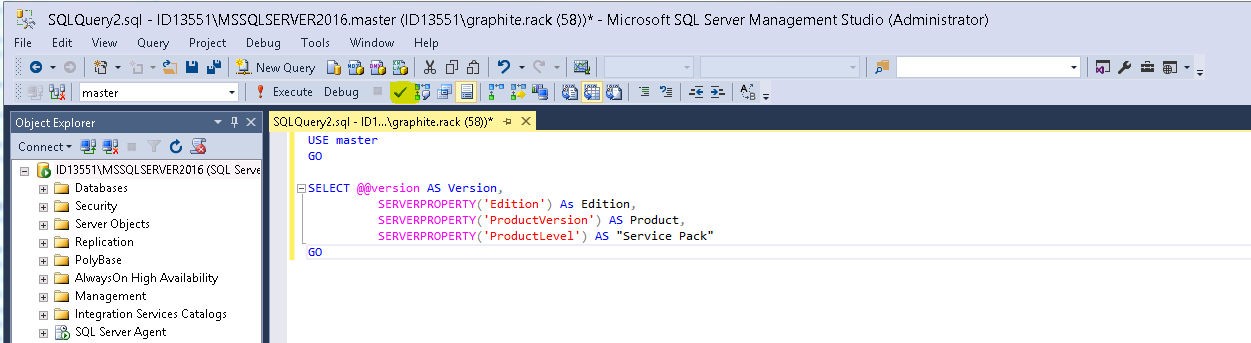
USE master
GO

SELECT @@version AS Version,
          SERVERPROPERTY('Edition') As Edition,
          SERVERPROPERTY('ProductVersion') AS Product,
          SERVERPROPERTY('ProductLevel') AS "Service Pack"
GO
You can parse the query to check syntax via the green tick highlighted in the above screenshot, or just click on Execute.
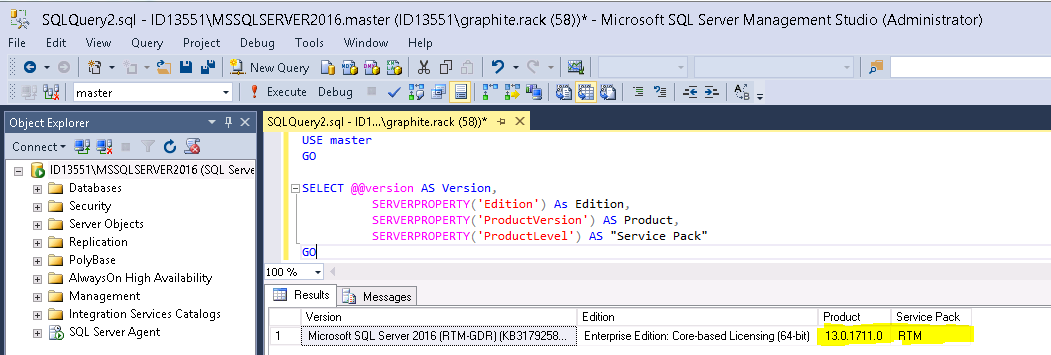
Take a copy of the product results in the query. In this case, when searching 13.0.1771.0, go to the link below using either CTRL + F and search for the build number, or manually scroll and search.
MSSQL build numbers explained
https://buildnumbers.wordpress.com/sqlserver/
Build 13is the edition, which in this case isMSSQL 2016.00or0indicates that it is a non-R2 build.17710is the patch version.
In this example I have a patch installed:
13.00.1711.0 2015.130.1711.0 3179258 Processing a partition causes data loss on other partitions after the database is restored in SQL Server 2016 (1200) August 17, 2016