MSSQL remote access
Connecting to MSSQL Instance remotely
In order to connect to a MSSQL instance from a remote source, the following is required:
- Check the port on which MSSQL is currently listening. This is typically port
1433/tcp. - Outbound connectivity from the originating source to the destination server over the MSSQL port.
- Firewall rules to allow inbound connectivity over the MSSQL port.
- SQL Server Management Services (SSMS) to be installed on the remote client.
How to check your servers MSSQL port
To check the port in which the SQL Server is configured to listen on, you would need to:
- Establish an RDP connection to the MSSQL server
- To open MSSQL Server Configuration manager
- Click
Start - Then
Microsoft SQL Server {Version} - Then
SQL Server {Version} Configuration Manager
- Click
- Expand
SQL Server Network Configuration- Click
Protocols for MSSQLSERVER - Right click
TCP/IP - Then
Properties - Then
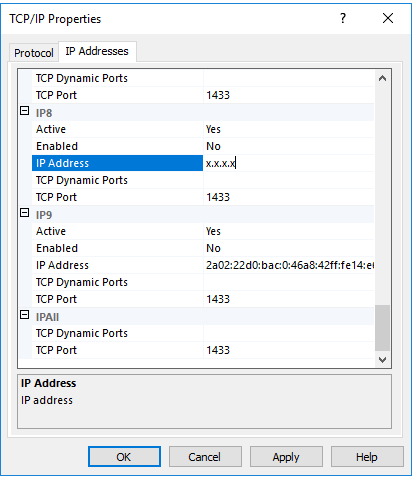
IP Addresses - Scroll down until you see your internal server IP and check
TCP port
- Click
Opening the MSSQL Ports on your firewall
Dependent upon on whether or not your server resides behind a dedicated or shared firewall, the following documentation will guide you through securely opening the MSSQL ports.
Troubleshooting connectivity to your MSSQL Server
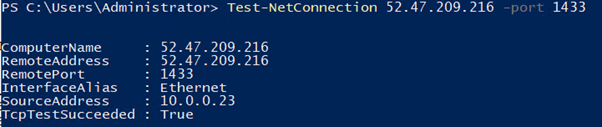
To check if you're able to communicate from your workstation network over the required MSSQL port, you can use the Test-NetConnection PowerShell cmdlet:
Test-Netconnection {RemoteServerAddress} -port {MSSQLPORT}
Please note, the TcpTestSucceeded message indicates if the port is accessible.
Example
To further test connectivity to your instance, the following method can be used:
On your remote client:
- Go to
Start>Notepad.exe>File>Save As - Enter the filename as
ConnectionTest.udl - Set
Save As typetoAll Files (*.*)
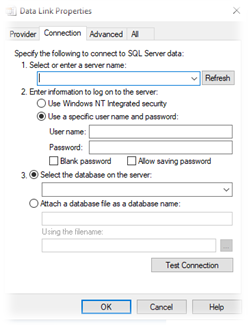
Open the UDL file and enter the following information:
| Name | Value |
|---|---|
| Server name | The server IP |
| Use a specific username... | Enter the SQL Server Credentials |
| Select the database on the server | Select hte DB you would like to connect to |
Then click Test Connection.
Installing SSMS and connecting to your instance
The latest SSMS client can be downloaded here.
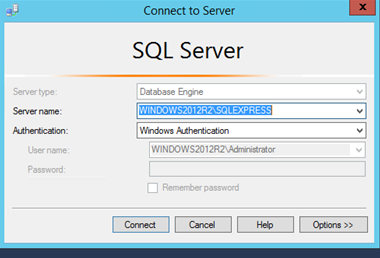
In order to connect to the instance, you will need to enter the correct connection details in to the Connect to Server pane, as demonstrated above.
Please note that Windows Authentication may not be enabled on your instance. If this is the case, you will need to use the sa credentials to authenticate instead. In order to do this, you simply need to select the arrow next to the Authentication field, select SQL Server Authentication, then enter your sa credentials in the username and password fields below.