Restoring an MSSQL Database from backup
In order to restore a database to your MSSQL Instance follow the below steps.
This guide assumes that you already have MSSQL Management Studio installed and that you are connected to your database. If this is not the case and you are unsure of how to go about this follow our respective guides on those subjects.
To restore a copy of your database from a pre-made backup, firstly right click anywhere on or within the databases menu in object explorer to the left hand side of the Microsoft SQL Management Studio and select Restore Database from the resulting context box as below:

You will now be presented with the Restore Database pane. You will see a source field and a destination field in the centre of this pane. In the source filed, select the Device option (this allows you to restore a backup file from your local hard disk drive.)
Once you have selected Device, please select the ... button which will present the Select backup devices pane. Ensure that the backup media type is set to File, and select Add.
Now navigate to the database backup and select the file which you wish to restore. Once the file has been selected, select OK.
You will now be returned to the Select backup devices pane. Once you are happy that all of the files which you wish to restore have been selected, select OK.
You will now be taken back to the Restore Database pane and it should look similar to the below example:
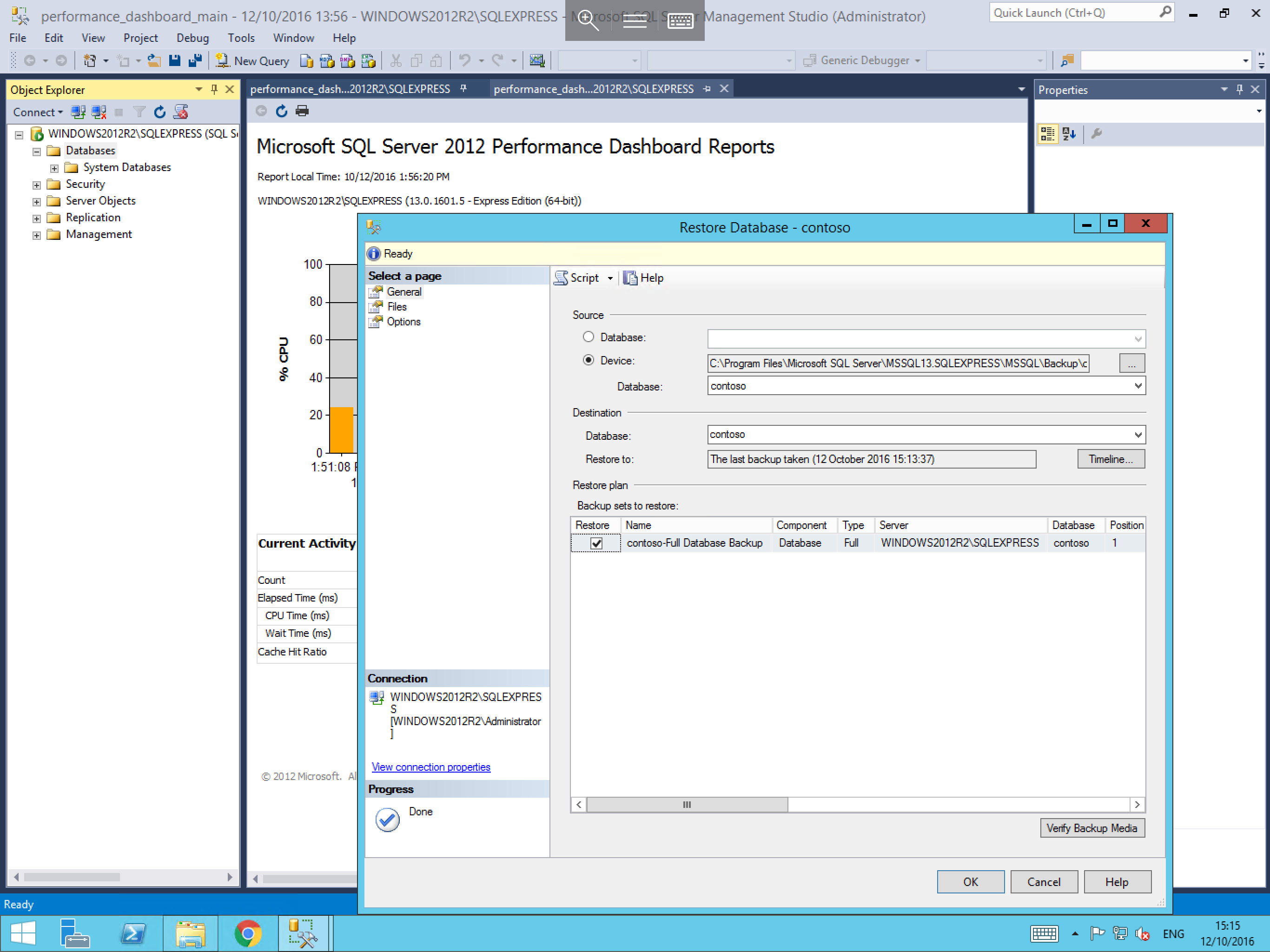
Now select OK and the restore process will start. Once completed a prompt will be displayed to inform you that the process has completed. You should now be able to see your restored database in the databases section of MSSQL Management Studio as below:
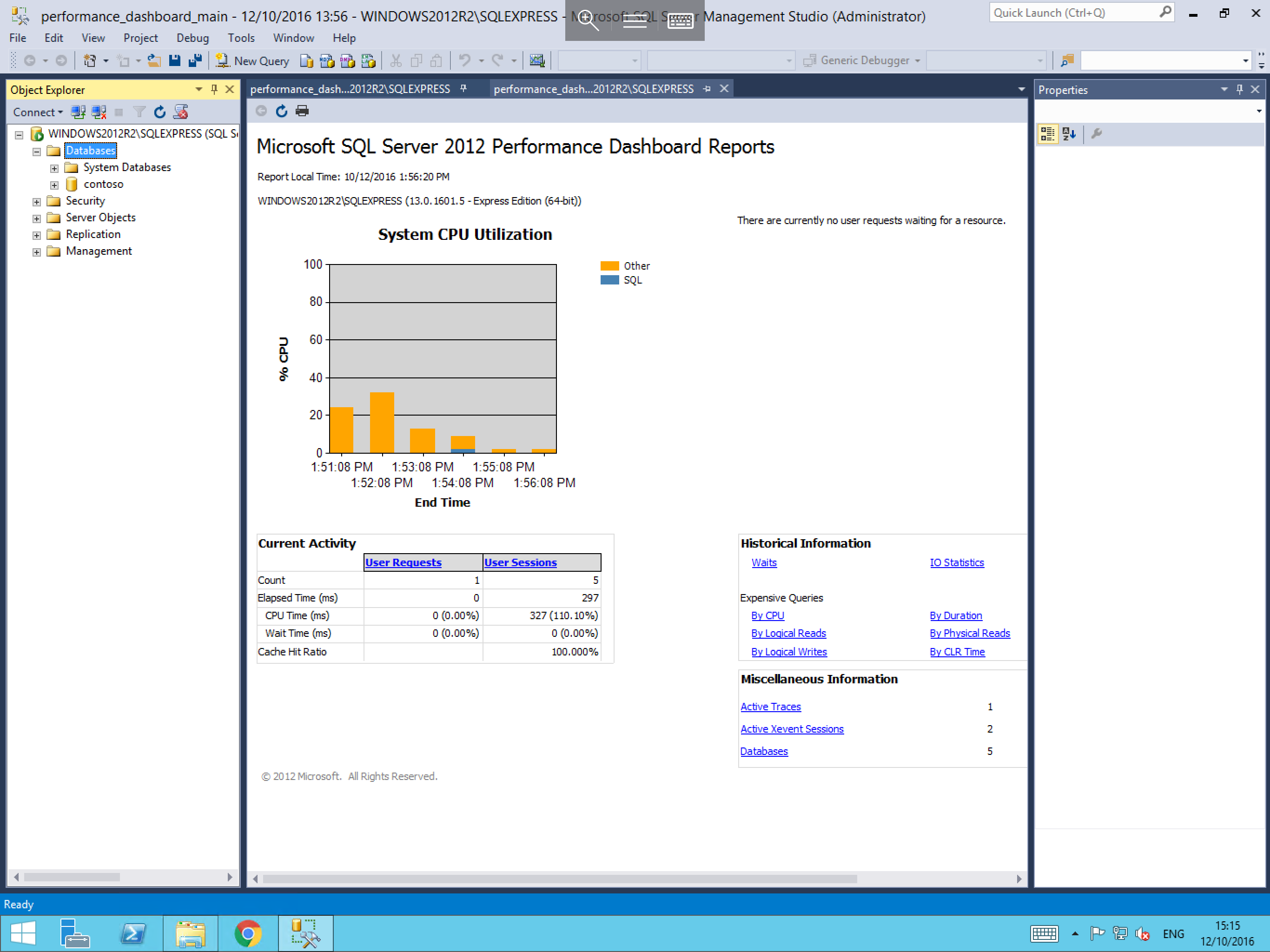
The restore process is now complete.