Automatic updates in Windows Server 2016
In Windows Server 2016, Windows updates are partially controlled by a new update orchestrator service as well as by the Windows Update service. The orchestrator service uses a series of scheduled tasks to check for new updates being installed by Windows Update and schedules a reboot at any time outside of the 12 hour "active hours" window if the service detects that an update has been installed. The orchestrator provides no control over the day, or specific time within the 12 hour window at present.
There is no official resolution at the time of writing, beyond controlling update release via WSUS, once the update is released however, a random reboot will occur when the update has been installed.
ADMX policy templates for Windows Server 2016 group policy do not appear to have any control over update reboots at the moment.
There is however a manual workaround to stop the auto reboot via orchestrator, while still allowing updates to be installed until Microsoft releases controls with more granularity.
If your Windows Server 2016 server is with ANS, the below steps have already been taken to prevent automatic reboots of your server.
To disable auto restart for updates:
-
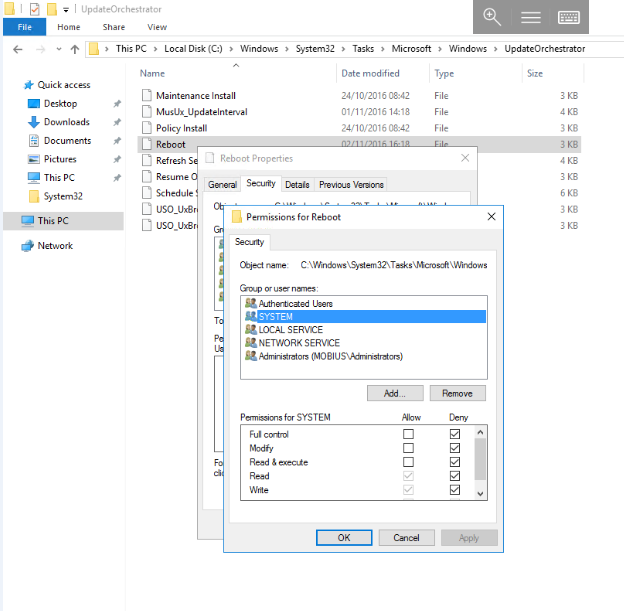
Open task scheduler by selecting
Start, typingtask scheduler, then select the resultingTask Schedulericon. -
Navigate through the task library to
Microsoft>Windows>UpdateOrchestrator. Once you have reachedUpdateOrchestrator, you will be able to see a series of tasks in the central window. -
Disable the
Reboottask by right clicking on theReboottask as below and selectingDisablefrom the context menu. -
Once the
Reboottask has a status ofDisabled, you can close the task scheduler.
- Open Explorer by selecting the
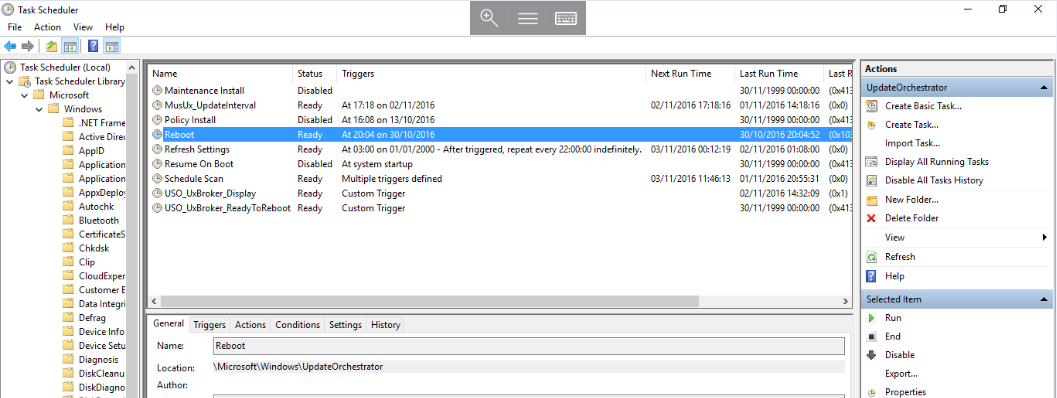
Foldericon from the task bar, and navigate toC:\Windows\System32\Tasks\Microsoft\Windows\UpdateOrchestrator - Right click on the
Rebootfile, and selectProperties. You will now be presented with theReboot Propertieswindow. Select theSecuritytab and select theEditbutton. - Set file security to
Denyfor all types of access forSYSTEM,LOCAL SERVICE,NETWORK SERVICE. You can do this by selecting each of the mentioned users in turn and selecting theDenybox forFull Controlas below. (This prevents Windows from re-enabling the task.)