How to map a network drive
To map a network drive, follow the below steps.
This guide assumes that you have already configured a drive for sharing.
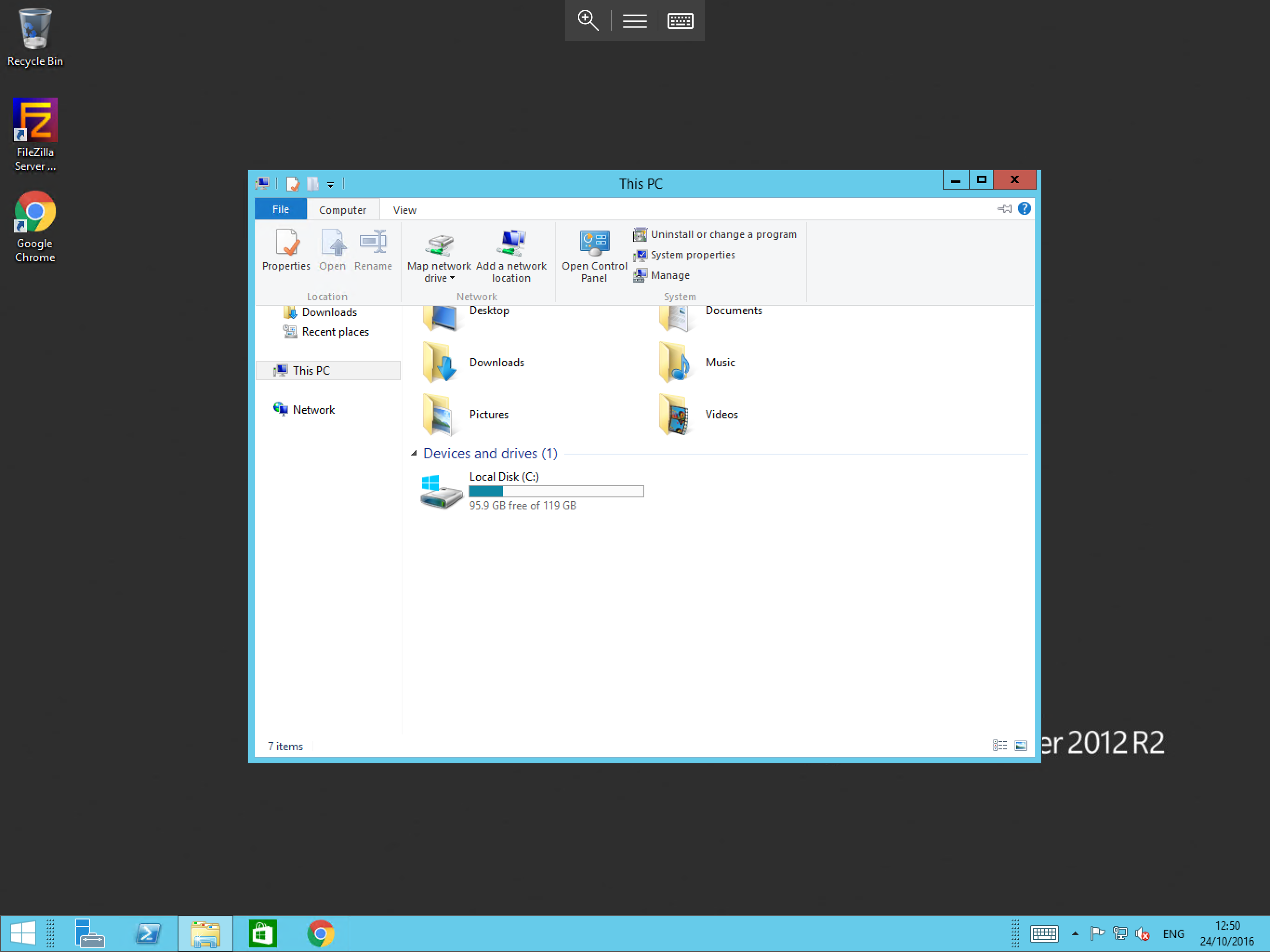
Select Start and then select This-PC or My Computer depending on the version of Windows which you are using. Once the window opens, please select Computer from the menu
and select Map Network Drive as below:
You will now be presented with the Map Network Drive wizard. Select a drive letter which you would like the network drive to occupy on your workstation once mapped,
then enter the location of the shared drive for example \\server1\contoso shared drive in the blank field next to Folder as below. If you are unsure of the address of the shared drive you can select Browse.
In a domain environment, drives cannot be viewed this way by default, and need to be mounted by group policy.
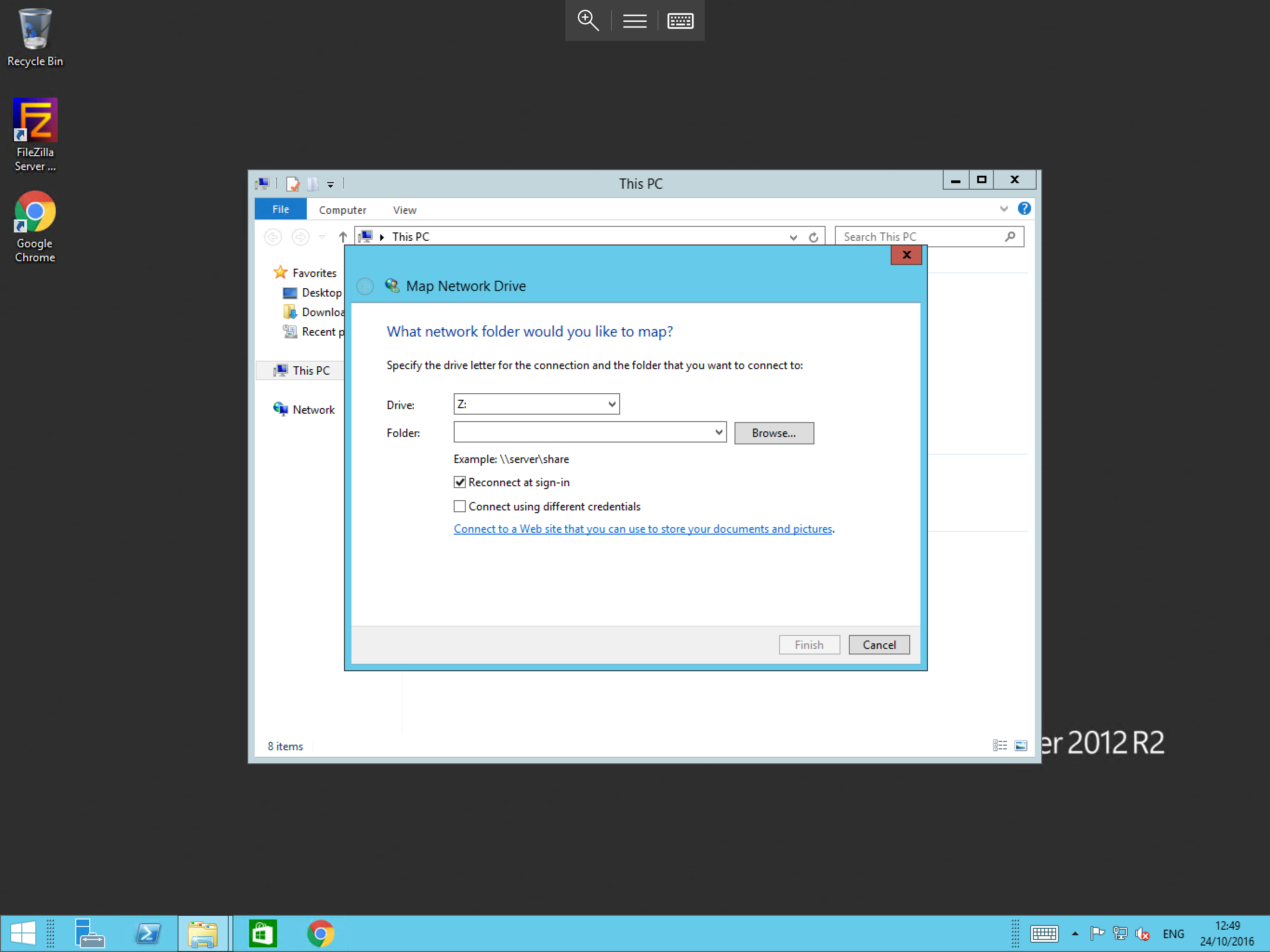
Once you have entered the required information, select Finish.
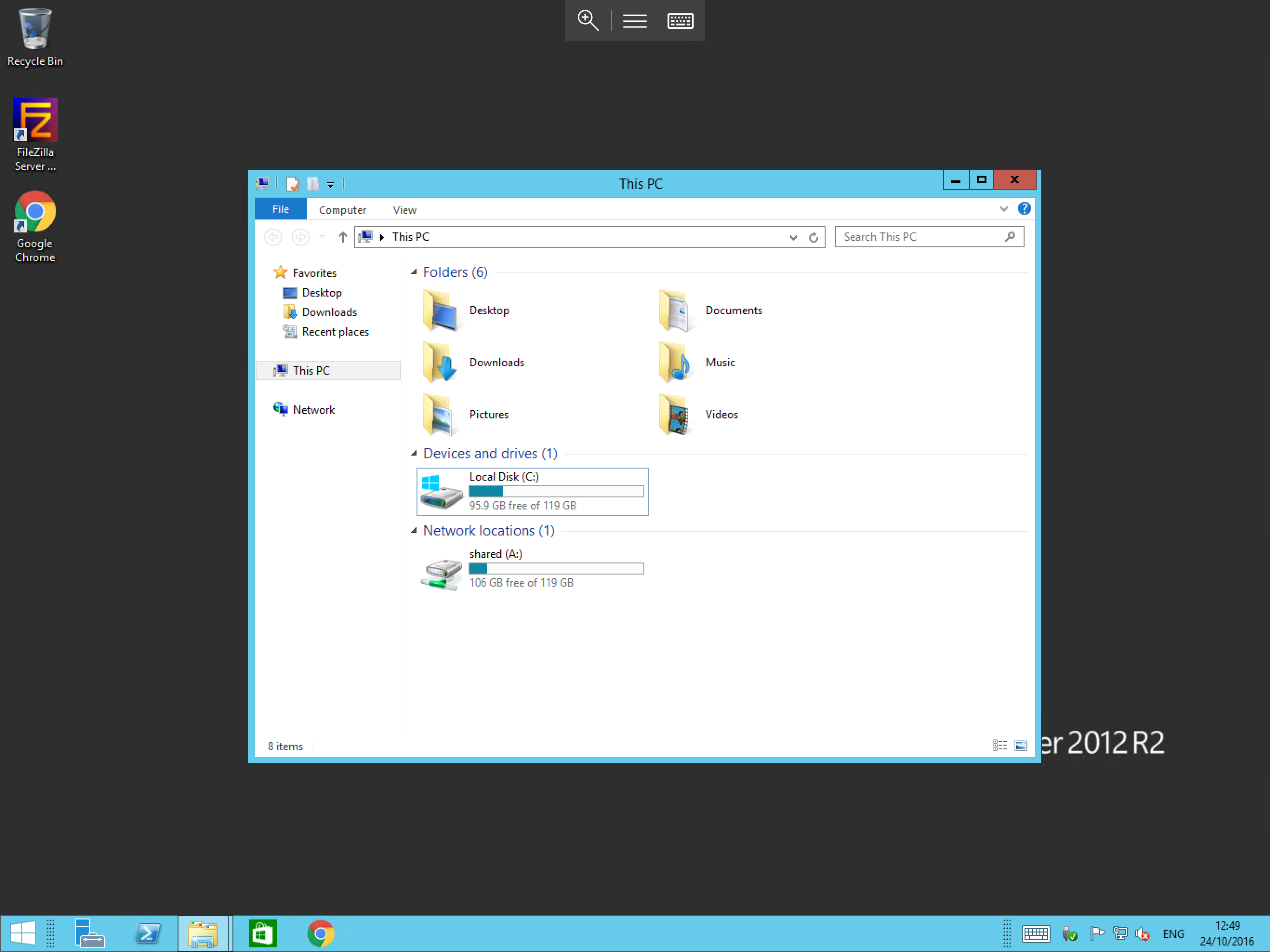
You should now be presented with the shared drive in This-PC or My Computer, under the drive letter chosen when mapping the drive (in this case A) as below.