User administration for AnyConnect VPN
If you have an AnyConnect VPN setup on your dedicated firewall you can edit the user configuration via the online editor. You can add a user, remove a user, change passwords and/or group-policy for a user all via the ANS Glass VPN Users tab.
Add a new user
Once on the VPN tab, click the Details button in the Remote Access section. You will then see an option to Add New User near the top of the page.
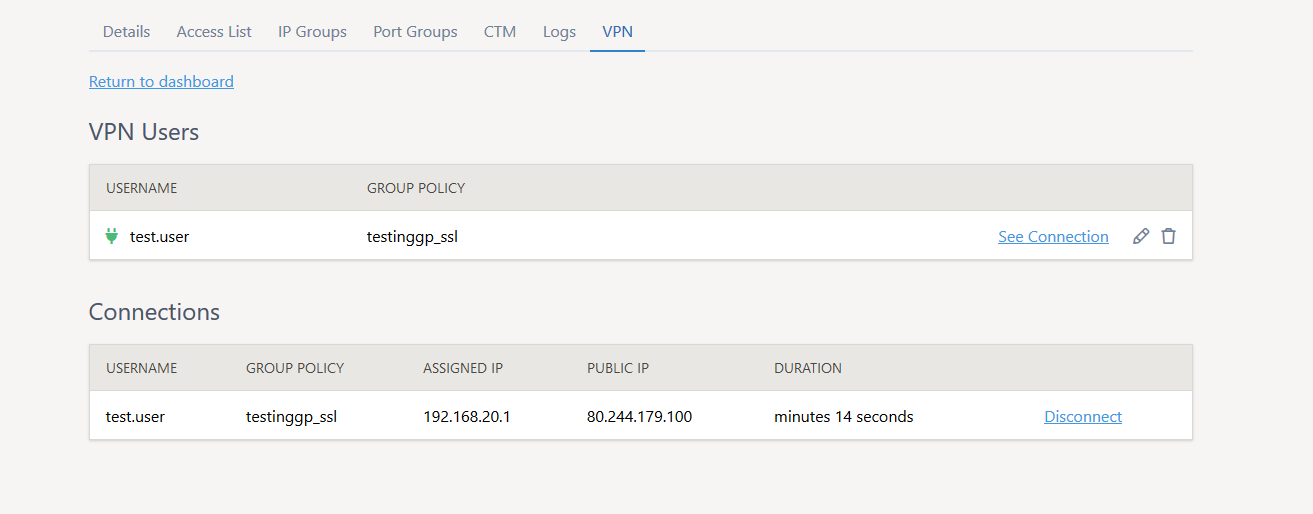
Click this and you will be presented with this screen:
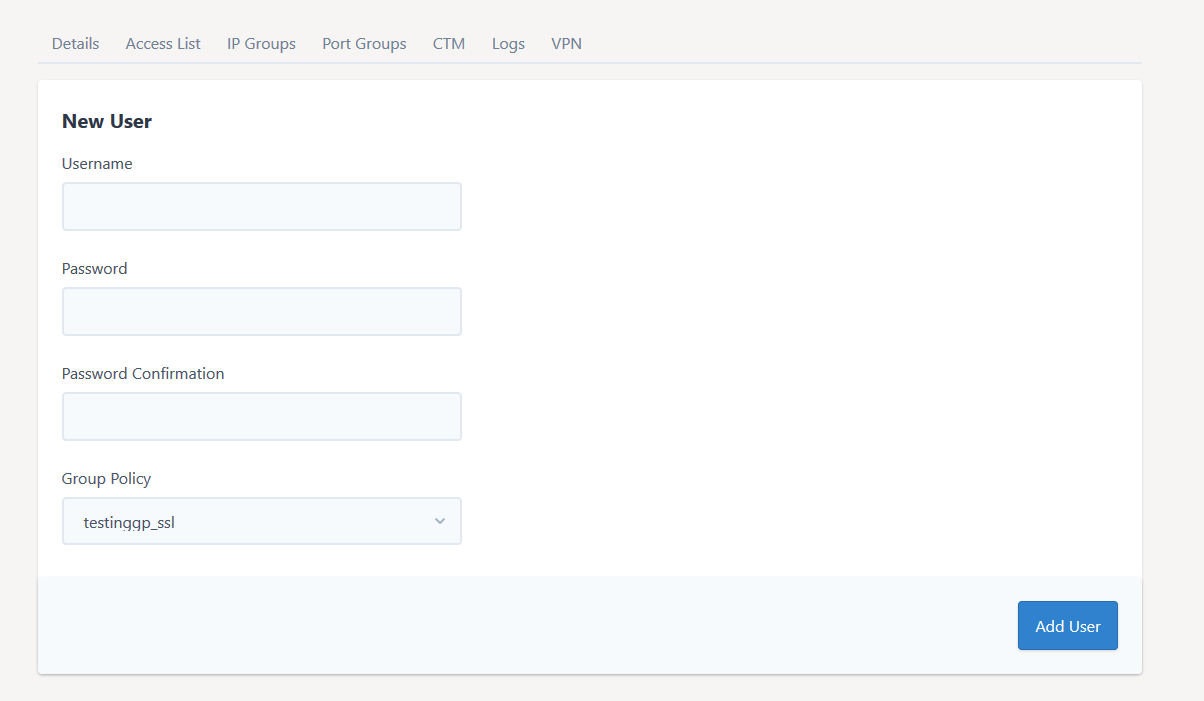
Fill in the fields given and select the group-policy you would like applying to the new user (there may only be one in the list). Then click Add User.
Please note, the change is not made to the firewall until you click Apply Changes.
Editing an existing user
To edit an existing user click the user name in the list of users on the VPN Users tab. This will give a page to make changes to passwords and/or group-policy.
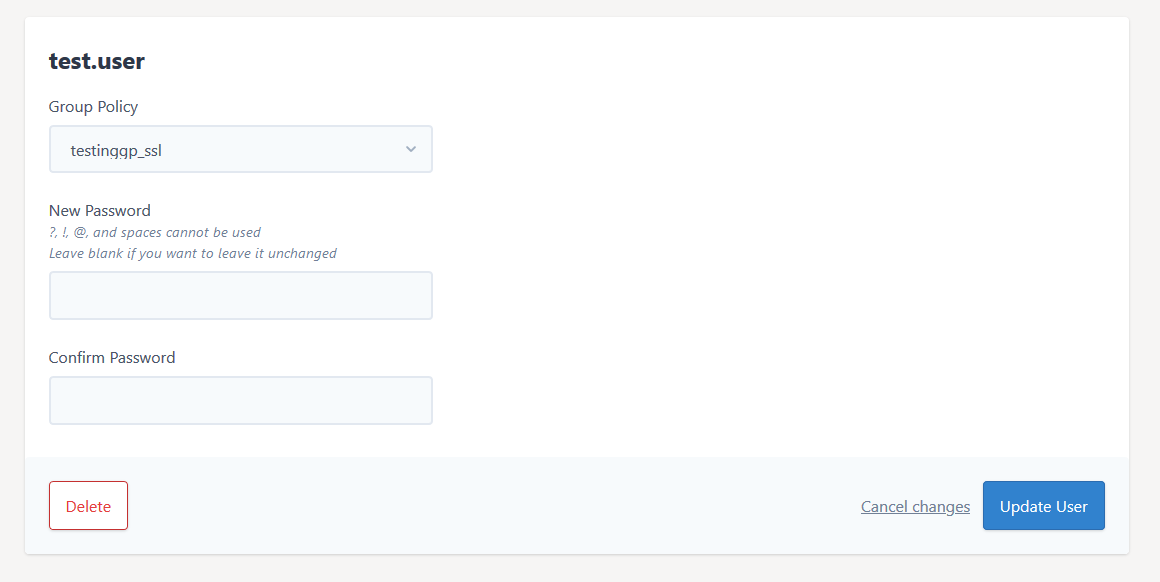
Make the changes and click Update User.
Please note, the change is not made to the firewall until you click Apply Changes.
If you require assistance with this, simply give the ANS Support Team a call, or raise a Priority Support Ticket and we'll be happy to advise/help.