How to secure your sites with Let’s Encrypt in cPanel/WHM
cPanel/WHM offers a feature called AutoSSL that integrates with both Let's Encrypt and their default provider (Sectigo). This allows you to install and automatically renew certificates for your domains. It should also cover your cPanel services, such as mail, hostname and ftp.
The plugin only allows for Wildcard certificates to be generated if you use WHM as your DNS provider: If using SafeDNS or an external DNS provider then you will need to do this manually using a tool like certbot.
Installation
If not installed already, then you will need to ssh onto the server as root and run the following command:
/usr/local/cpanel/scripts/install_lets_encrypt_autossl_provider
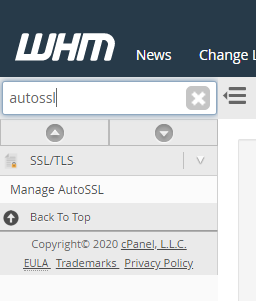
Next, open WHM and search for Manage AutoSSL.
Here, you will have a list of providers, and Let’s Encrypt will be one of them.
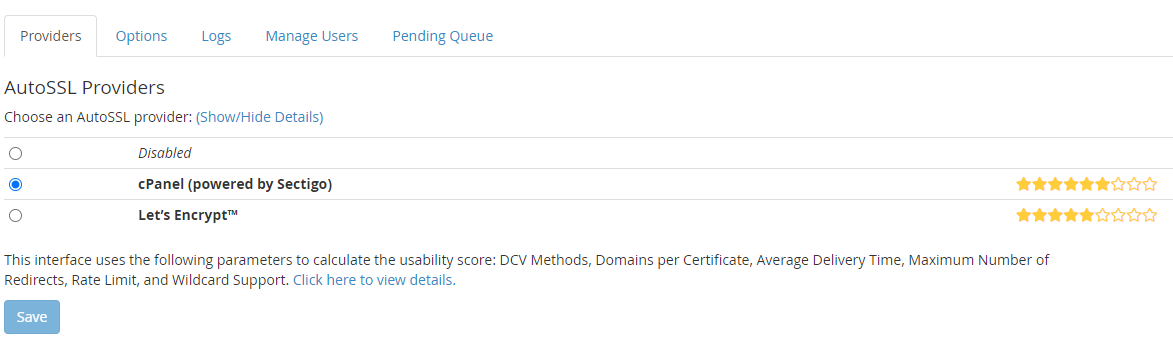
Select this provider, and after agreeing to the terms of service this will be available for you to use.
More information on this plugin is available in the WHM plugin documentation - https://docs.cpanel.net/knowledge-base/third-party/the-lets-encrypt-plugin/86/
Issuing a certificate with AutoSSL
Once you have selected Let's Encrypt as a provider, it’s time to generate certificates for your domains.
In the AutoSSL section of WHM, click on the Manage Users tab. Here you will have both global and per account options for enabling/disabling AutoSSL.
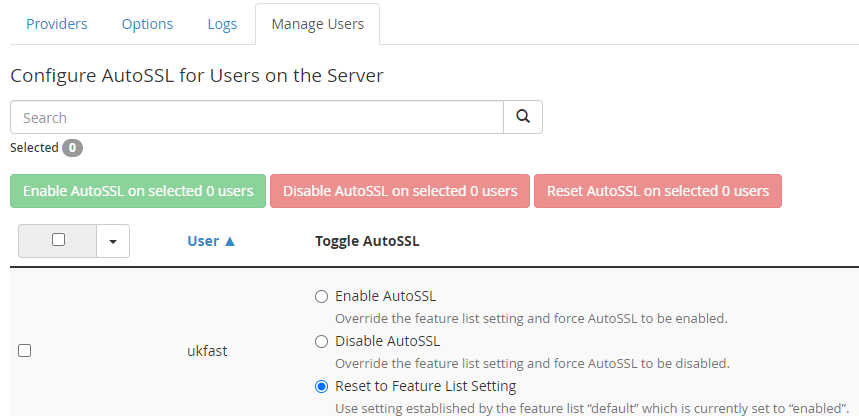
Once enabled, certificates will be automatically renewed close to the expiration date of the SSL.
Troubleshooting
If you are having issues with generating a certificate, the first place you should check is the logs tab in AutoSSL
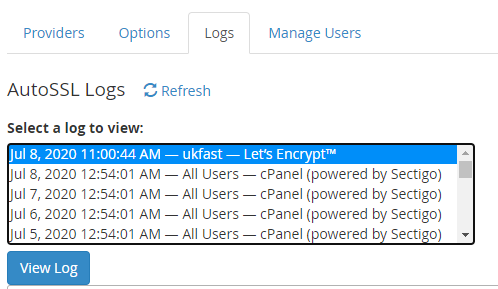
This should highlight any Let’s Encrypt challenge issues you may have. Beyond this, you can raise a support ticket and we can help identify the underlying issues with you.